How Scrimba Scrims Work
A scrim is Scrimba's interactive lesson format: the instructor's code is live, editable text, not video pixels. Pause the timeline, take over the editor, run your change in the built-in mini-browser, then resume where the instructor left off. That loop, not the curriculum, is what separates Scrimba from a normal video course.
Reviewed inside the course with a Pro account, September 2026.
What Is a Scrim?
A scrim (short for screencast + interactive media) records the instructor's keystrokes, cursor movements, and audio as separate tracks instead of baking them into a single video. That is why the code you see is real text you can edit, not a frame you can only watch.
The Key Difference
| Traditional Video Tutorial | Scrimba Scrim |
|---|---|
| Code is baked into the video as pixels | Code is live, editable text |
| You watch passively | You pause and edit the code |
| Need a separate editor to follow along | The editor IS the lesson |
| Setup required (IDE, terminal, project) | Zero setup, code in the browser |
| Can only rewind and rewatch | Can rewind, edit, run, and experiment |
How the Pause-and-Code Flow Works
Here's what a typical learning session looks like:
- Watch the instructor. They explain a concept and write code. You see the code appear in real time.
- Pause at any point. Click the video timeline or press the spacebar. The lesson freezes.
- Edit the code. The entire editor is now yours. Change variables, add functions, rewrite logic, whatever you want.
- Run your code. Use the built-in mini-browser to see your changes in real time. No terminal commands needed.
- Resume the lesson. When you're ready, unpause. The instructor's code picks up where it left off, and your edits are saved separately.
This loop, watch, pause, edit, run, resume, keeps you coding instead of watching.
Two details you only notice once you are inside a lesson. Challenges show up as small purple ghosts on the timeline, and the recording pauses by itself when it reaches one; in the Frontend Path's platform tutorial Tom Chant warns "you do have an option to skip", then adds "if you don't take advantage of that, you just won't learn." And the moment you type in the editor, a yellow dot appears on the timeline where you are. Scrimba calls that a scribble: your version of the code at that point, saved to the lesson "for your eyes only" so you can come back to it. Run your edit with the run icon or Cmd+S (Ctrl+S on Windows), and resume with the play button.
Why Zero Setup Matters
There is nothing to install to start a scrim:
"No setup, no switching tabs, no wasting time."
On other platforms, following along with a tutorial requires:
- Installing a code editor (VS Code, Sublime, etc.)
- Setting up a new project folder
- Installing dependencies (Node.js, npm packages)
- Configuring the environment
- Switching between the video and the editor
On Scrimba, you open a lesson in your browser and start coding. The barrier between "I want to learn" and "I'm writing code" is measured in seconds, not minutes.
Next step: try a real scrim with no signup. Two minutes settles the format question faster than any review.
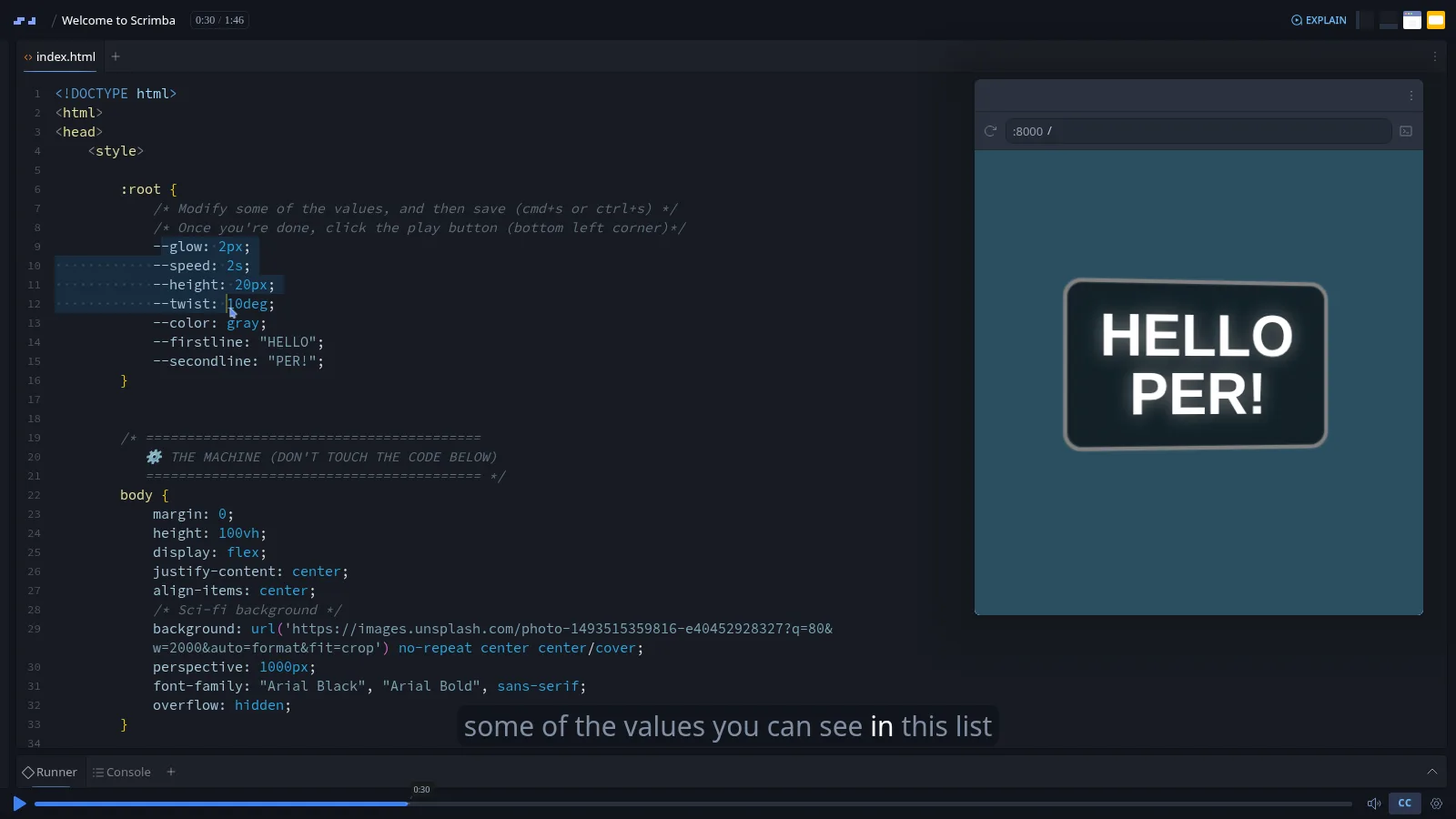 No signupPress play to open "Welcome to Scrimba" (1:46). At 0:30 it asks you to change the highlighted values, press Cmd+S, and watch the preview on the right update. (opens in a new tab)
What the Editor Supports
The built-in scrim editor includes:
- Syntax highlighting for HTML, CSS, JavaScript, TypeScript, Python, and more
- Auto-complete for common patterns
- A mini-browser that renders your HTML/CSS/JS output in real time
- Console output for debugging JavaScript
- Multiple file support for projects that span HTML, CSS, and JS files
- Code persistence, your edits are saved so you can return to a lesson later
- An EXPLAIN button in the header: when a line makes no sense, highlight it, press EXPLAIN, and Scrimba Explain builds a short narrated video from that lesson's files and transcript (10 explainers for life on Free, 100 a month on Pro)
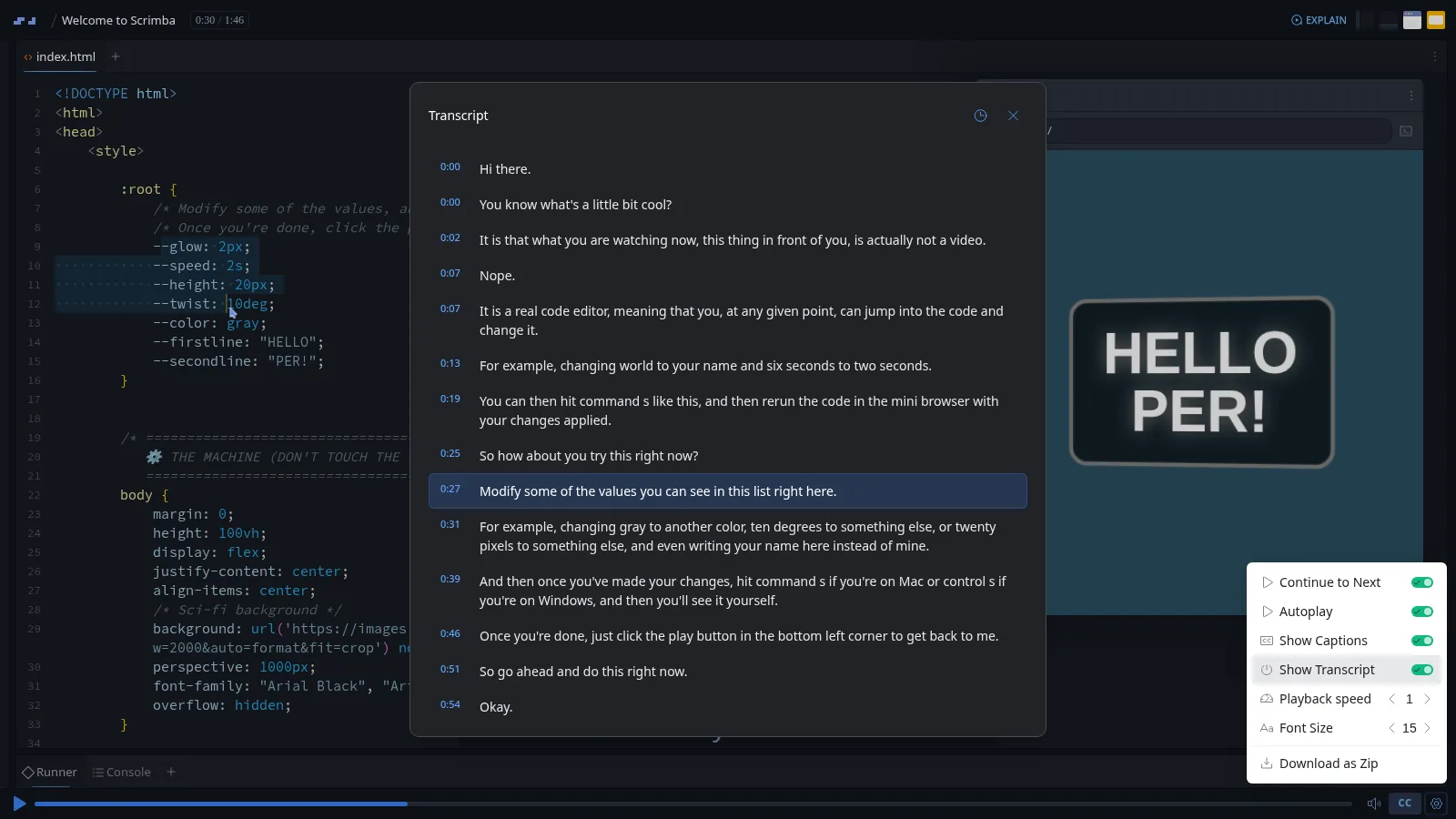
The player bar has more than play and pause. Its settings menu holds Continue to Next, Autoplay, Show Captions, Show Transcript, Playback speed, Font Size and Download as Zip (the lesson's files, for working locally). The transcript opens as a panel over the editor with every line timestamped and the current line highlighted. Captions are on by default, and course lessons offer subtitles in ten languages.
Challenges and Solo Projects
Beyond the core watch-and-code flow, Scrimba builds two additional layers of practice into its career paths:
Interactive Challenges
At the end of most sections, you'll face a challenge: "Now you try it." The editor presents a starting state, and you need to solve the problem using what you just learned. Hints are available if you get stuck, and you can see the instructor's solution afterward.
Solo Projects
At major milestones, you'll tackle a solo project, a longer assignment where you build something from scratch with only a design spec and requirements. There's no instructor walkthrough. These are the portfolio pieces you'll show to employers.
How Scrims Compare to Other Formats
| Format | Active Coding? | Setup Required? | Feedback Speed |
|---|---|---|---|
| Scrimba scrims | Yes, in the lesson | None | Instant (built-in browser) |
| YouTube tutorials | No (separate editor) | Yes | Depends on your setup |
| Udemy/Coursera video | No (separate editor) | Yes | Depends on your setup |
| freeCodeCamp exercises | Yes (text-based editor) | None | Instant (automated tests) |
| Codecademy exercises | Yes (text-based editor) | None | Instant (automated tests) |
| The Odin Project | No (use your own tools) | Yes | Depends on your setup |
Scrimba combines instructor-led video with live, in-lesson coding. Others offer either passive video or text-based exercises, not both at once.
Next step: for a deeper comparison, see Scrimba vs Codecademy (the closest interactive alternative) or Scrimba vs YouTube (the passive-video baseline).
Tips for Getting the Most from Scrims
- Pause before every ghost. Challenges show up as purple ghosts on the timeline and the recording stops there on its own. Use that pause to write your own solution before pressing play again.
- Break things on purpose. Every edit you make drops a yellow scribble marker on the timeline, saved separately from the instructor's version, so renaming a variable or deleting a line costs you nothing.
- Open the transcript instead of rewinding. The transcript panel timestamps every line and highlights the one playing. It is faster than scrubbing back to catch a phrase you missed.
- Press EXPLAIN before you skip a confusing line. Highlighting the line and using EXPLAIN gets you a narrated walkthrough of that exact code, rather than guessing and moving on.
Related Pages
- How Scrimba Helps You Escape Tutorial Hell, why passive tutorials fail and how scrims fix it
- Scrimba vs YouTube, detailed comparison with passive video
- Frontend Developer Path, the most popular career path using scrims
- Scrimba Review, our full platform review
- Scrimba Explain, the AI explainer behind the EXPLAIN button in every scrim
- Scrimba for Busy Professionals, why the zero-setup format saves time
Scrimba is an interactive coding platform. Each lesson is a 'scrim', a video where the code is live text, not pixels. You pause the video, edit the instructor's code directly in the same interface, run it, and resume. Everything runs in the browser with zero setup.
No. Scrimba runs entirely in your web browser. There's no software to install, no IDE to configure, and no project setup required. You open a lesson and start coding immediately.
Yes. When you edit code during a scrim, your changes are saved automatically. You can return to any lesson and see your previous edits alongside the instructor's original code.
The mini-browser handles standard HTML, CSS, and JavaScript well. For more complex projects involving backend code or external APIs, Scrimba uses integrated tools like Node.js environments. Occasional limitations exist with very advanced browser APIs.
Scrimba is optimized for desktop browsers. While the site loads on mobile, the interactive coding experience works best with a keyboard and larger screen.
Codecademy uses text-based instructions with a code editor, there's no video instructor. Scrimba combines a real instructor demonstrating and explaining concepts with an editor you can take over at any moment. It's the combination of guided instruction and hands-on practice in one interface.
Experience interactive scrims yourself
Try Scrimba's free courses to see the interactive format in action. No credit card required.
Use our partner link to get 20% off the Pro plan.